
Remote support for multiple locations
Organize Windows computers across offices and branches with Deskbat. Give your support team clear access, computer names and a repeatable support process.
Supporting several locations starts with knowing which computer needs help. An office name, a person’s name and a generic “Windows PC” label are easy to confuse during a call. Deskbat workspaces, sites and computer permissions give your team a way to organize access before an issue arrives.
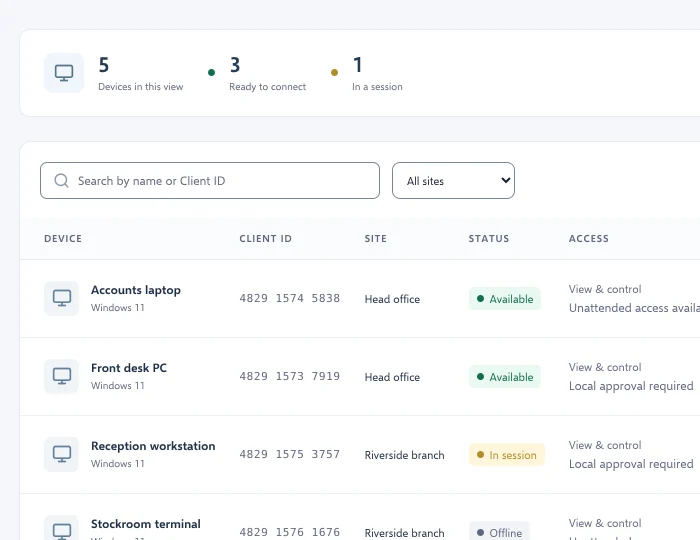
Build a directory that matches your locations
Use consistent computer names, such as “North office · Reception” or “Warehouse · Dispatch”. Organize computers into sites where useful, and keep a record of a local contact for each location in your support process.
A site helps organize computers. Review workspace roles and computer permissions separately; do not assume a location label decides who is authorized to connect. If you support separate customer organizations, choose the appropriate workspace before adding computers or inviting colleagues.
Choose the right connection for each request
For a staff member who is present, ask for the Deskbat ID and request approval. They can allow viewing or control. For recurring work while nobody is present, arrange owner-authorized unattended access and test it in advance.
Signed-in people outside the workspace can request approval or connect by ID with an authorized unattended password. Keep that password separate from routine ticket details, and review who has it when staff or suppliers change.
Use a repeatable support handoff
- Identify the computer. Confirm the location, computer name and Deskbat ID with the person requesting help. Ask whether somebody is at the PC.
- Confirm readiness. Check that the Windows app is running, the computer is awake and online, and sharing is available. A powered-off monitor alone does not mean the PC is asleep.
- Connect with the required access. Start with viewing when guidance is enough; use control when the task requires input. Follow the agreed approval or unattended-access process.
- Close the loop. Confirm the result with the person being helped, end the session and record the outcome in your support process.
Review access and investigate failed attempts
Invite each support colleague using their own account and check the computers they can access. Review membership and computer permissions as responsibilities change. Use Activity to inspect connection outcomes and workspace changes.
For a failed connection, collect the affected computer, time, app versions, exact message and diagnostic reference. Distinguish a branch-wide connectivity problem from a single computer that is asleep or has sharing paused. The connection guide helps narrow the next check.
Plan for busy periods
Capacity depends on simultaneous sessions as well as the people and computers in your setup. If two support colleagues may help two branches at once, plan for both connections. Use the pricing page for current limits and availability, and contact Deskbat about requirements that do not fit a listed plan.
Start with one Windows computer at each location and test over the actual networks involved. Confirm normal access, locked-screen access where needed and the local process for a sleeping or unreachable PC before extending the setup to more computers.