
Remote access for small businesses
Reach your Windows computers, help colleagues and organize team access with Deskbat. Start with one computer, then build a setup that fits your business.
A small business may need remote access for several different jobs: an owner checking an office application, a colleague helping with a setting, or an IT provider supporting staff. Deskbat brings Windows computers into a shared workspace so you can find the right machine and choose how to connect.
Choose access around the task
| What you need to do | How to prepare |
|---|---|
| Help a colleague at their computer | Ask for their Deskbat ID. They can approve viewing or control when the request arrives. |
| Use an office PC while away | Set up an unattended-access password on that PC, check readiness and keep it awake and online. |
| Let several colleagues provide support | Invite each person with their own account and review workspace roles and computer permissions. |
An ID identifies the computer; it does not grant access by itself. Both sides use supported apps and verified Deskbat accounts. For unattended access, use the separate password authorized by the computer’s owner.
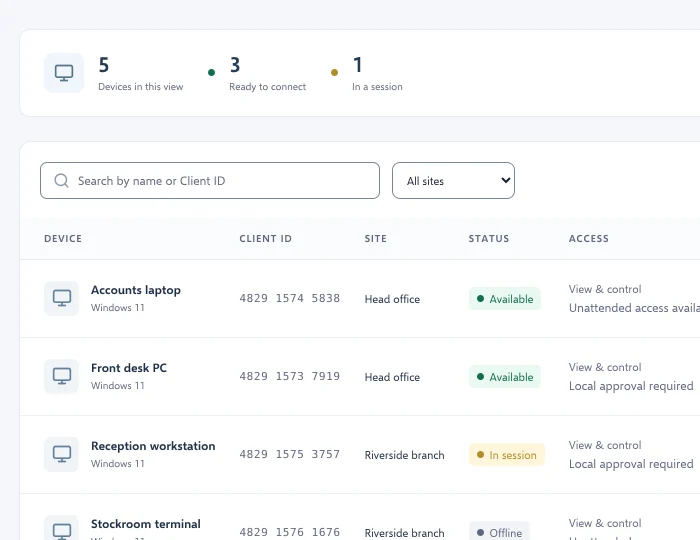
Start with one computer and one real task
- Prepare the office PC. Install Deskbat on a supported Windows 10 or 11 computer with administrator permission, sign in and check its ID in This computer.
- Connect from your viewing device. Use another Windows computer or the invited iPhone/iPad TestFlight beta. Confirm that you can find the PC or enter its ID.
- Complete a representative task. Open the application you normally use, read a document and test the input you need. Check picture quality on the connection you will actually use.
- Add colleagues deliberately. Invite them to the intended workspace and verify their permissions. Keep accounts individual so activity can be traced to the person involved.
The first-computer guide covers installation and account verification. macOS is coming soon; check the download page and iPhone and iPad page for current availability.
Plan for people, computers and simultaneous work
Count the people who need access, the computers they will reach and how many sessions may run at once. For example, two colleagues helping two different people at the same time need capacity for two simultaneous sessions. Having ten computers in a workspace does not mean all ten will be connected at once.
Review the current plan limits and availability before choosing a plan. Use the business requirements that matter to you rather than assuming a personal-use plan covers a support team.
Make access easy to review
Check workspace membership when someone joins or leaves. Review unattended-password sharing too: an authorized person outside the workspace can connect by ID with that password. Removing workspace membership alone is not a substitute for reviewing shared credentials.
Use Activity to review connection outcomes. When a connection fails, collect the computer name, time, exact message and diagnostic reference. This gives support a useful starting point without putting passwords in a support ticket.