
Remote support for your team and the people you help
Help someone by Deskbat ID with local approval, or use authorized unattended access. Manage Windows computers, permissions and connection history.
Deskbat gives small IT teams a shared place to find Windows computers and start remote support. For someone outside your workspace, ask for their Deskbat ID and request access from the app.
Find the setup that fits your work
Explore practical ways to use Deskbat, from your first office computer to a support team working across locations.
Help someone by ID
- Both people install a supported Deskbat app and sign in to verified accounts.
- The person receiving help reads the ID shown in This computer.
- Enter that ID in Search or connect. The host can approve viewing, allow control or decline.
- When the work is finished, end the session.
Use the right access for the task
- View-only access lets you guide someone without sending mouse or keyboard input.
- Control lets you interact with the remote Windows computer within the approved session.
- Unattended access uses a separate computer password configured by its owner. It is useful for trusted, recurring access.
Manage a small support team
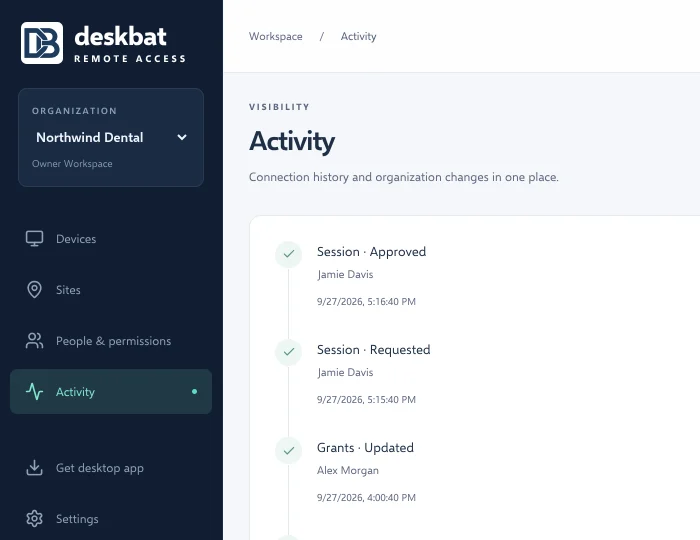
Organize computers into sites and assign workspace roles and computer permissions. Review connection activity when investigating a support request. Ask for the exact time and diagnostic reference when a connection fails; never ask a customer to send a password in a support message.
Plan your capacity
A simultaneous session is one connection to a computer. Choose a plan around the people, computers and sessions you need. The pricing page explains current plans and launch-period availability.